Butler Consulting Technology, LLC
  • 0 Shopping Cart
  • Home
  • About Us
    • Overview of Services
    • History
    • Founder/CEO
    • Web Services
    • Photography Services
  • Store
    • Browse All
    • Hosting Plans
    • Register a New Domain
    • Transfer Domains to Us
  • Announcements
  • Knowledgebase
  • Network Status
  • Contact Us
  • More
  • Account
    • Login
    • Forgot Password?
  1. Portal Home
  2. Knowledgebase
  3. CloudLinux (cPanel)
  4. How to Change the PHP Version via CloudLinux Selector in cPanel

  Categories

Backup/Restore
4
Cloudflare (cPanel)
9
CloudLinux (cPanel)
10
cPanel - Control Panel for Hosting Account Management
29
Databases
12
DirectAdmin
48
DNS - Nameservers
6
Domain Management
10
Email (Includes videos)
57
FileZilla Tutorials - Videos
10
FTP
28
Installing a Control Panel
6
Joomla
7
Mobile
11
MySQL Tutorials - Videos
11
Others
3
PayPal
7
Photo Tools
0
PHPadmin Tutorials (Videos)
8
Plesk
47
Security
10
Softaculous
69
SolusVM
18
SSL
5
Virtualizor
19
Web Browser
1
WHM
18
WordPress
17
WordPress Tutorials
12

  Categories

  Tag Cloud

addons address book admin autorespond backup bookmarks calendar cname configure connection control create database delete dns document domain download email file files filter folders ftp gmail joomla login manage Manage Domain management manager mysql nameserver password permission php quota remote rename repair restore search security server settings software task upload user video virus webmail wordpress yahoo

  Support

My Support Tickets
Announcements
Knowledgebase
Downloads
Network Status
Open Ticket

How to Change the PHP Version via CloudLinux Selector in cPanel Print

  • 0

You can use CloudLinux's Select PHP Version to change your website's PHP Version. CloudLinux provides various PHP Versions to choose from.

1. Log in to your cPanel account.

2. In the Software section, click on Select PHP Version.

cP-CL-Select-PHP-Version-icon.gif

3. To the right side of the Current PHP version, click on the drop-down menu and choose the version you want to use.

cP-CL-current-PHP-version-option.gif

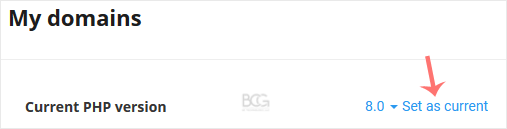
4. Click Set as current.

cl-set-as-PHP-version.gif


Was this answer helpful?

Related Articles

How to Increase PHP's upload_max_filesize Value Using CloudLinux Selector in cPanel You can modify PHP's upload_max_filesize as per your needs using CloudLinux's PHP Selector in... How to Increase PHP's post_max_size Value Using CloudLinux's Selector in cPanel You can modify PHP post_max_size as per your needs using CloudLinux PHP Selector in cPanel.... How to Enable or Disable PHP Extensions Using the CloudLinux Selector in cPanel You can use CloudLinux Selector to enable or disable available PHP extensions in cPanel.... How to Enable or Disable PHP's allow_url_fopen Using CloudLinux Selector in cPanel You can use CloudLinux Selector to enable or disable the allow_url_fopen directive in cPanel.... How to Enable or Disable PHP's display_errors via CloudLinux Selector in cPanel Sometimes, we need to debug PHP. Hence, we need to enable display_errors or disable them for...
« Back

  Tag Cloud

addons address book admin autorespond backup bookmarks calendar cname configure connection control create database delete dns document domain download email file files filter folders ftp gmail joomla login manage Manage Domain management manager mysql nameserver password permission php quota remote rename repair restore search security server settings software task upload user video virus webmail wordpress yahoo

  Support

My Support Tickets
Announcements
Knowledgebase
Downloads
Network Status
Open Ticket
  • Contact Us
  • Terms of Service

Copyright © 2026 Butler Consulting Technology, LLC. All Rights Reserved.


Loading...
Loading...

Generate Password

Please enter a number between 8 and 64 for the password length